Comparing strings with trailing spaces

select top 1 * from database.dbo.table WHERE 1=0 — returns no results

— makes sense

select top 1 * from database.dbo.table WHERE 1=1 — returns 1 row

— yep

select top 1 * from database.dbo.table WHERE ‘frog’ = ‘frog’ — returns 1 row

— cool

select top 1 * from database.dbo.table WHERE ‘frog’ = ‘frog  ‘ — returns 1 row

— eh!!?

Apparently it’s by design – http://support.microsoft.com/kb/316626

I didn’t know that!

Getting your SQL Server databases under source control

Here’s a tip – There is a free download available called SQL Server Data Tools that lets you put your databases into source control (I’m using TFS).

Check it out here – http://msdn.microsoft.com/en-gb/data/tools.aspx

It comes with the facility to do a schema compare which is useful just in itself if you havent shelled out for Redgates SQL Compare.  It only compares schemas though, not data.  However it will apply changes to a database for you, so for example you can compare your files in source control with the dev/live database and then apply any differences with the click of a button.

I’m hoping to use this to facilitate continuous integration and have an automated test build of our data warehouse databases – I will post back with details when it’s all set up and running.

Renaming / moving projects and solutions in BIDS

Something that has annoyed me plenty in the past but I’ve never bothered to figure it out properly, well it happened to me again today so I though I should put it to bed once and for all.

Lets say you create an SSIS project in BIDS, play with it for a bit, then decide you need another project in that solution – So you add your project and find your solution is named after your first project.

Renaming the solution in BIDS is easy – The problem is if you look in windows explorer the main folder for your solution is also named after your first project – You want to change this to match the new name of you solution.

So you rename the folder in windows explorer and suddenly you can’t open your projects in BIDS anymore – It doesnt know where they are any more.

The trick is to edit the .sln file for the solution in notepad – You will need to change the file to not be read only first (I also ran notepad as admin for good measure).

Once in notepad you will see a couple of places where you need to change the path to match your new folder name (see example below)

Make the changes to reflect what is now the case (ie what you see in windows explorer) – Save the file, then re-open in BIDS and all should be good with the world!
Microsoft Visual Studio Solution File, Format Version 9.00
# Visual Studio 2005
Project(“{D183A3D8-5FD8-494B-B014-37F57B35E655}”) = “xLoadLoad”, “xLoadLoad\xLoadLoad.dtproj”, “{84171A3D-08EF-4E73-B60A-7EBA421F58EE}”
EndProject
Project(“{D183A3D8-5FD8-494B-B014-37F57B35E655}”) = “xDWHLoad”, “xDWHLoad\xDWHLoad.dtproj”, “{90639253-2455-4D72-9C2A-269F6C259E2A}”
EndProject
Project(“{D183A3D8-5FD8-494B-B014-37F57B35E655}”) = “xStageLoad”, “xStageLoad\xStageLoad.dtproj”, “{75B18651-AEA6-41B8-BE5B-7B351FEBD1DC}”
EndProject
Global
GlobalSection(TeamFoundationVersionControl) = preSolution
SccNumberOfProjects = 4
SccEnterpriseProvider = {4CA58AB2-18FA-4F8D-95D4-32DDF27D184C}
SccTeamFoundationServer = xxx
SccLocalPath0 = .
SccProjectUniqueName1 = xDWHLoad\\xDWHLoad.dtproj
SccProjectName1 = xDWHLoad
SccLocalPath1 = xDWHLoad
SccProjectUniqueName2 = xStageLoad\\xStageLoad.dtproj
SccProjectName2 = xStageLoad
SccLocalPath2 = xStageLoad
SccProjectUniqueName3 = xLoadLoad\\xLoadLoad.dtproj
SccProjectName3 = xLoadLoad
SccLocalPath3 = xLoadLoad
EndGlobalSection
GlobalSection(SolutionConfigurationPlatforms) = preSolution
Development|Default = Development|Default
EndGlobalSection
GlobalSection(ProjectConfigurationPlatforms) = postSolution
{84171A3D-08EF-4E73-B60A-7EBA421F58EE}.Development|Default.ActiveCfg = Development
{84171A3D-08EF-4E73-B60A-7EBA421F58EE}.Development|Default.Build.0 = Development
{90639253-2455-4D72-9C2A-269F6C259E2A}.Development|Default.ActiveCfg = Development
{90639253-2455-4D72-9C2A-269F6C259E2A}.Development|Default.Build.0 = Development
{75B18651-AEA6-41B8-BE5B-7B351FEBD1DC}.Development|Default.ActiveCfg = Development
{75B18651-AEA6-41B8-BE5B-7B351FEBD1DC}.Development|Default.Build.0 = Development
EndGlobalSection
GlobalSection(SolutionProperties) = preSolution
HideSolutionNode = FALSE
EndGlobalSection
EndGlobal

No credits for this one as I worked it out myself 😀

Self documenting database (SQL Server)

Like most developers (and in fact most sane people) I dont like doing documentation, however you can’t deny the value of it so I went about trying to see how it could be done in SQL Server without having to buy some software or have a prolonged fight with MS Word!

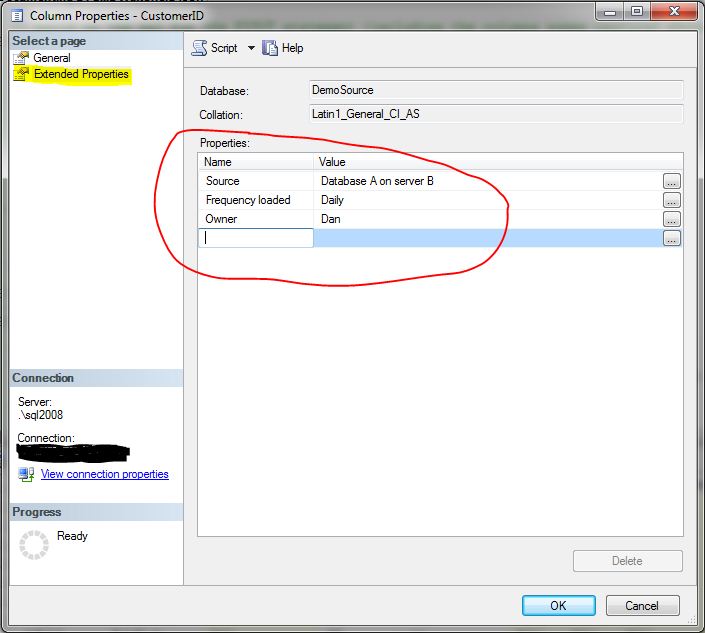
A quick google led me to the extended properties page of a columns properties (in management studio)

You can add all the extra meta data you require here specific to your project, in this example I’ve added 3 extended properties – Source, Frequency loaded and Owner.  I’ve then given these properties values for this particular column.

That meta data is then stored against the column’s id in a system table called sys.extended_properties, we can see this by running a quick select statement:

Now all we need to do is pivot this so we get one row with all the extended properties as columns and we can join onto the INFORMATION_SCHEMA.COLUMNS system view using the major and minor ids.  I have had to do a bit of jiggery pokery in order to not have to specify the names of the extended properties (we wont necessarily know what they are all the time!).  I dont have time to go into it in detail but have a look at the comments in the code below and it should hopefully make sense.

declare


@names asvarchar(100)


declare


@sql asnvarchar(max


— populate @names variable with the columns we want to include in our PIVOT statement

select


@names =coalesce(@names +‘, ‘,)+ name from

sys.extended_properties ep 

— build up the sql for the PIVOT statement (including the columns names captured above)

set

@sql =  

‘SELECT major_id, minor_id,

+ @names +‘into ##tmp

FROM

(SELECT name, value, major_id, minor_id

FROM sys.extended_properties

WHERE class = 1) AS SourceTable

PIVOT

(

max(Value)

FOR name IN (‘


+ @names +‘)) AS PivotTable’


— run the sql to save this data in ##tmp

exec

sp_executesql@sql

— Bring it all together by pulling the columns details from information_schema

— and then joining on the extra metadata gathered above

SELECT

TABLE_NAME

, COLUMN_NAME, COLUMN_DEFAULT,c

.IS_NULLABLE,case

whencast(DATA_TYPE ASvarchar(10))like‘%char%’  

thencast(DATA_TYPE ASvarchar(10))+‘(‘+replace(cast(CHARACTER_MAXIMUM_LENGTH ASvarchar(6)),‘-1’,‘max’)+‘)’ 

else data_type end,ep

.*FROM

INFORMATION_SCHEMA

.COLUMNS cINNER

JOIN


sys

.columns scON

OBJECT_ID

(c.TABLE_SCHEMA +‘.’+ c.TABLE_NAME)= sc.[object_id]

AND

c.COLUMN_NAME = sc.name

LEFT

OUTERJOIN


##tmp ep

ON

sc

.[object_id] = ep.major_idAND

sc.[column_id] = ep.minor_id

ORDER

BY


1

, 2;